Audio Function Generator Tutorial
This is a short tutorial of the Audio Function Generator App. If there are any questions, please just send an Email to tom@ee-toolkit.com.
This is a short tutorial of the Audio Function Generator App. If there are any questions, please just send an Email to tom@ee-toolkit.com.
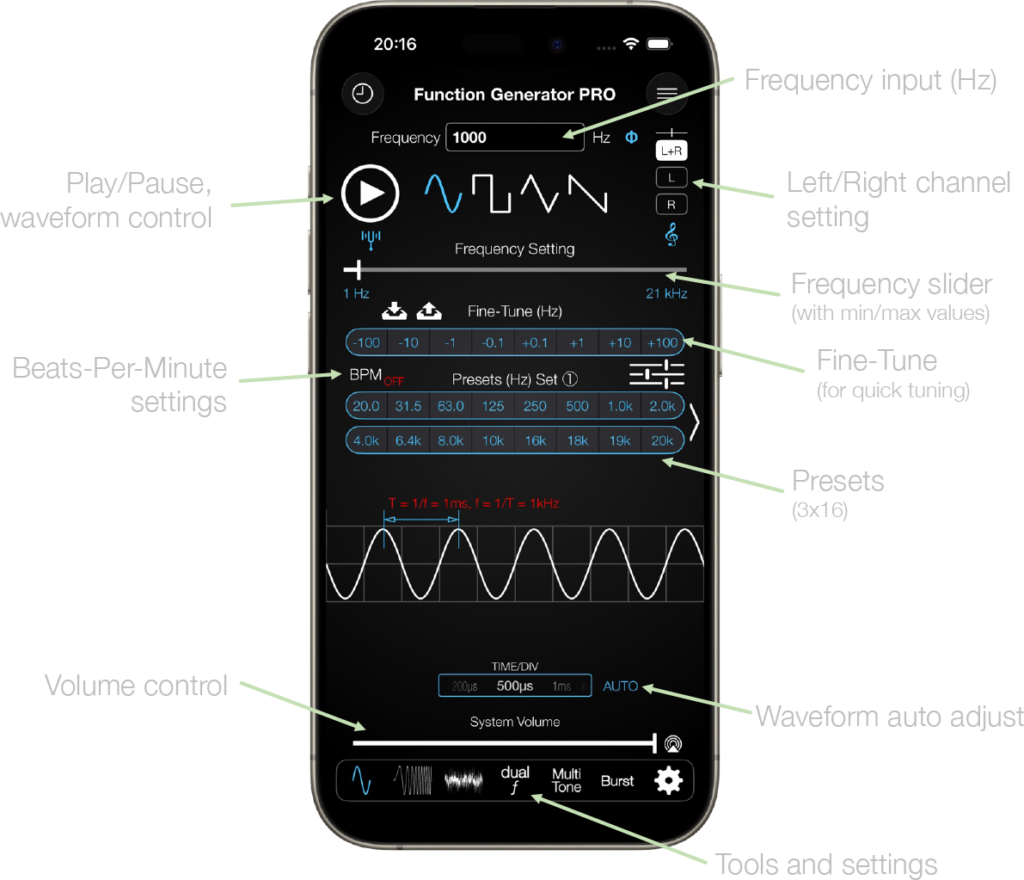
Enter a frequency in the text field (range 1.0 – 21kHz). Select one of the four waveforms: sine, rectangular, triangular or sawtooth. Press the play button to start or stop playback. The frequency slider provides an alternative to the text field entry via the keyboard. Set the volume via the volume slider or via the vol+/vol- buttons on your iPhone or iPad.
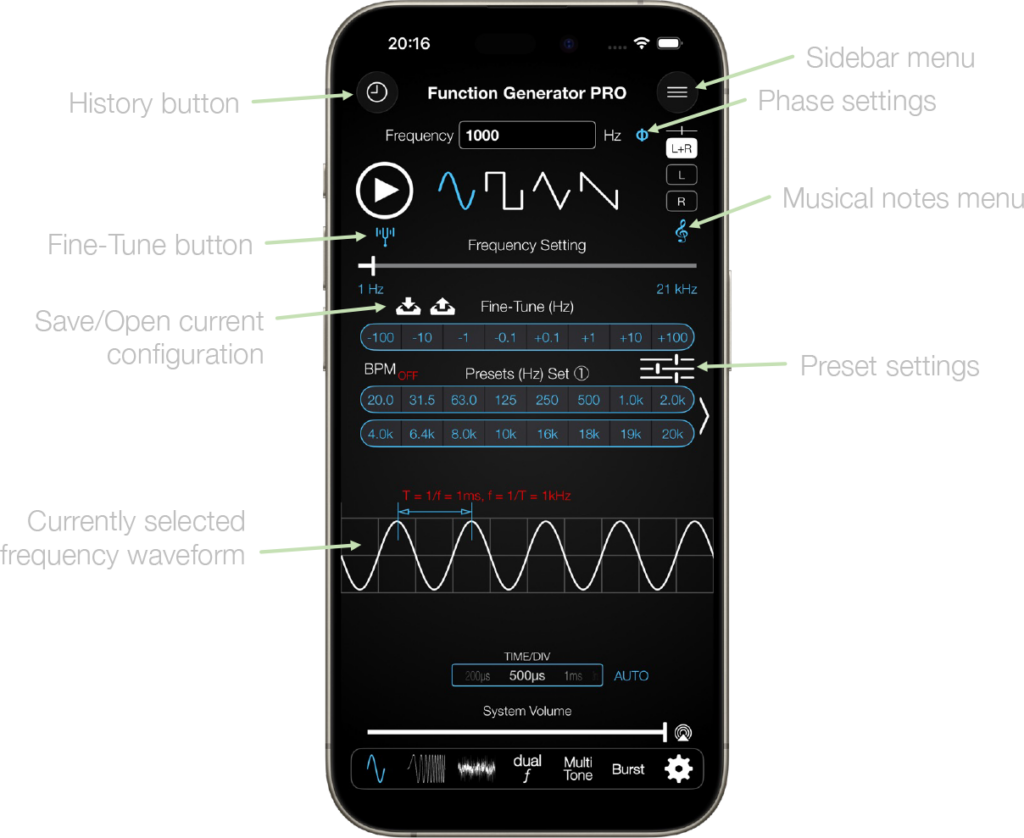
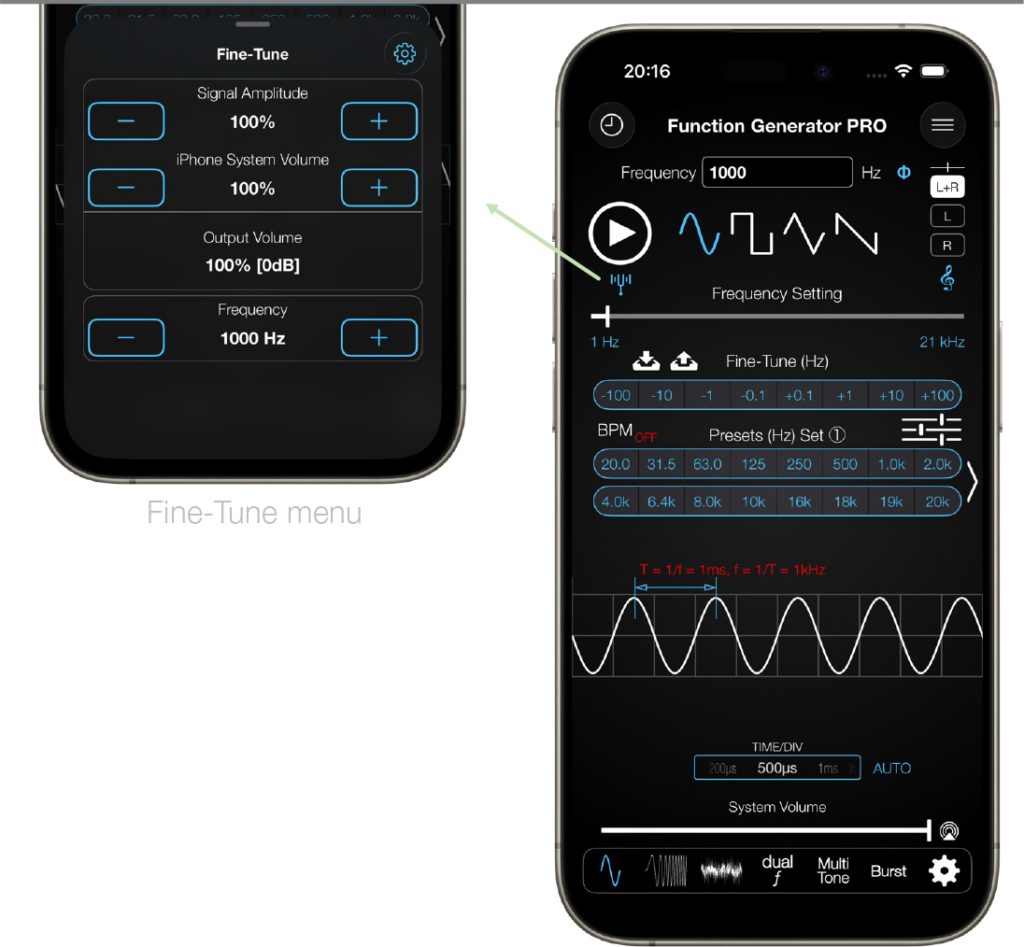
The phase button allows changing the phase of the generated audio for the left and right channel individually.
The Save/Load menu opens a view for custom configurations. You can save any sound configuration there and play it back any time later. Configurations can be rearranged and also deleted.
The Beats-per-minute setting allows you to pulse the audio at a custom on/off timing.
The preset setting opens a popover which allows you to customise your presets.
The waveform with currently selected frequency and amplitude is shown right above the Master Volume button.
More details below.
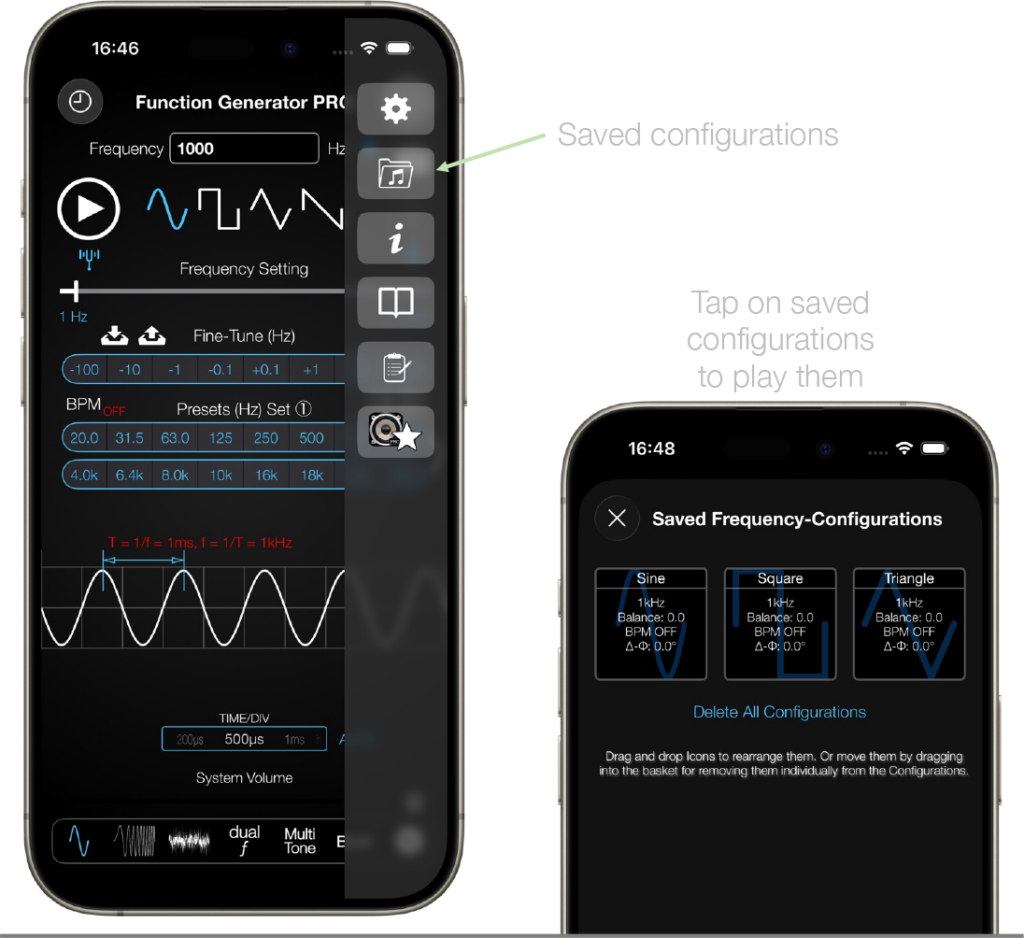
Audio configurations can be saved in a dedicated menu and opened at any later time. Just tap on a saved configuration to start playback. Configurations can be rearranged or deleted.
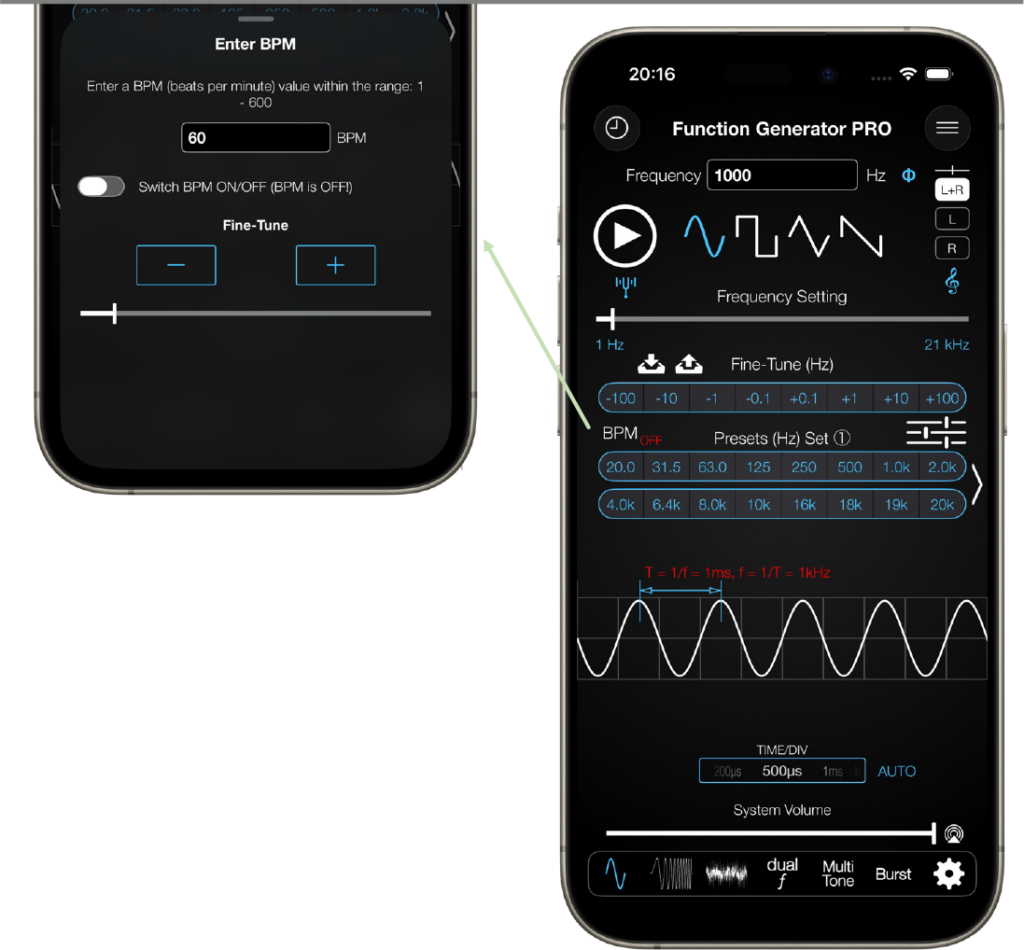
The Beats-per-minute menu allows you to generate a pulsed audio signal. You can pulse the generated audio within a range of 1 – 600 BPM.
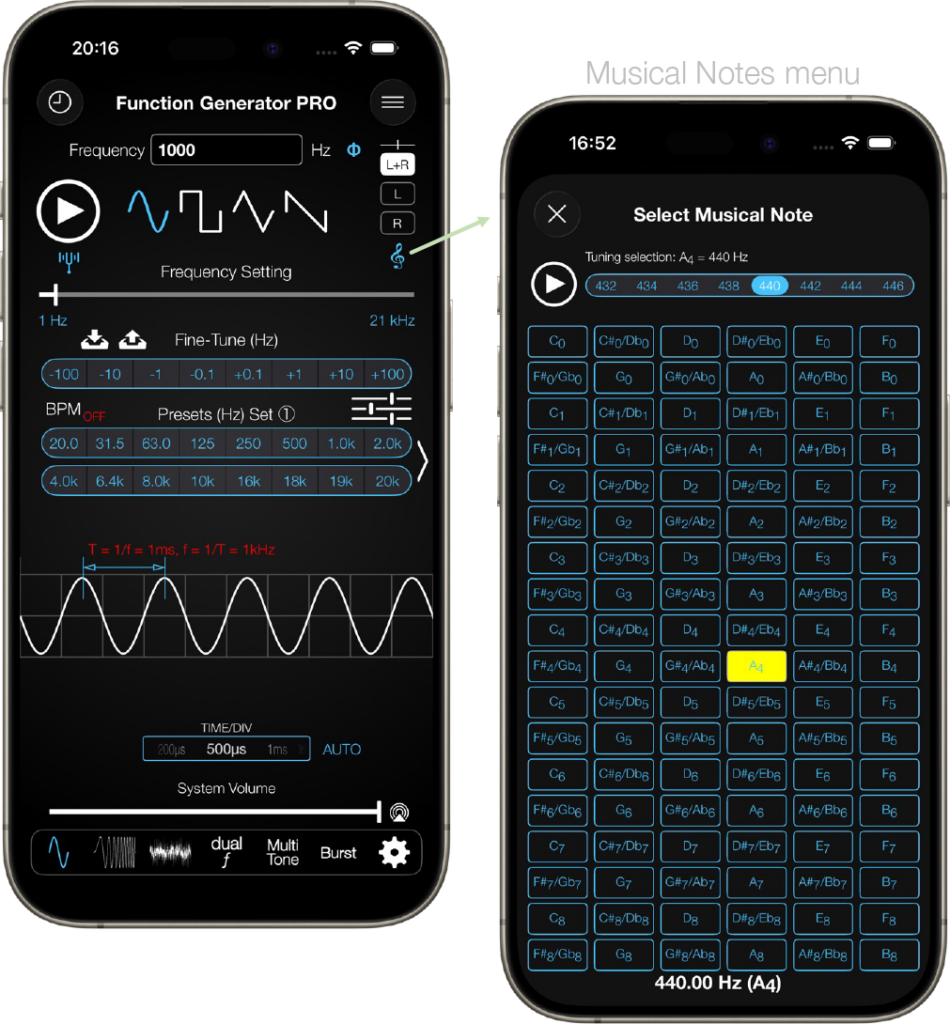
Clicking on the musical note button opens a popover which presents a matrix of musical notes. Tapping on any of the notes plays the respective tone.
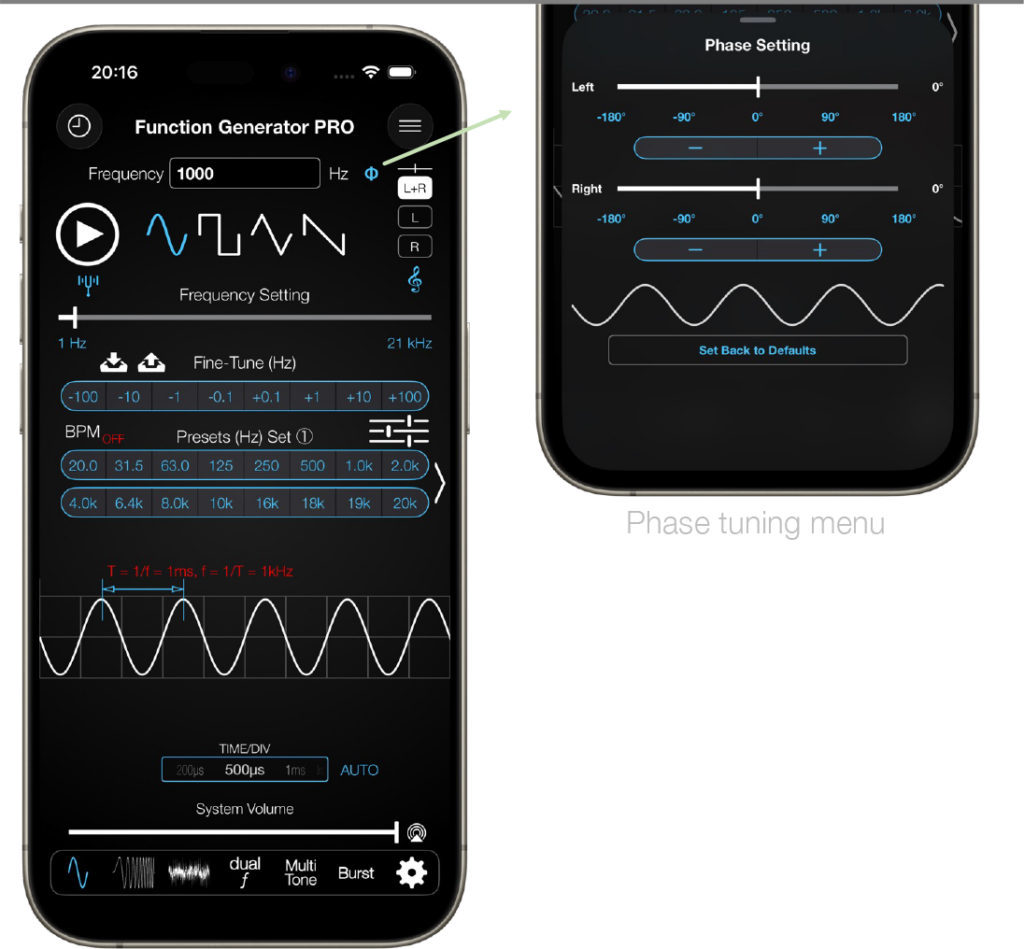
The phase button opens menu which allows you to fully customise the phase: -180° – 180° for both channels using sliders and buttons for fixed values (-180, -90, 0, 90, 180). Whenever the phase is not 0° for either Left or Right channel, the phase icon will turn red.
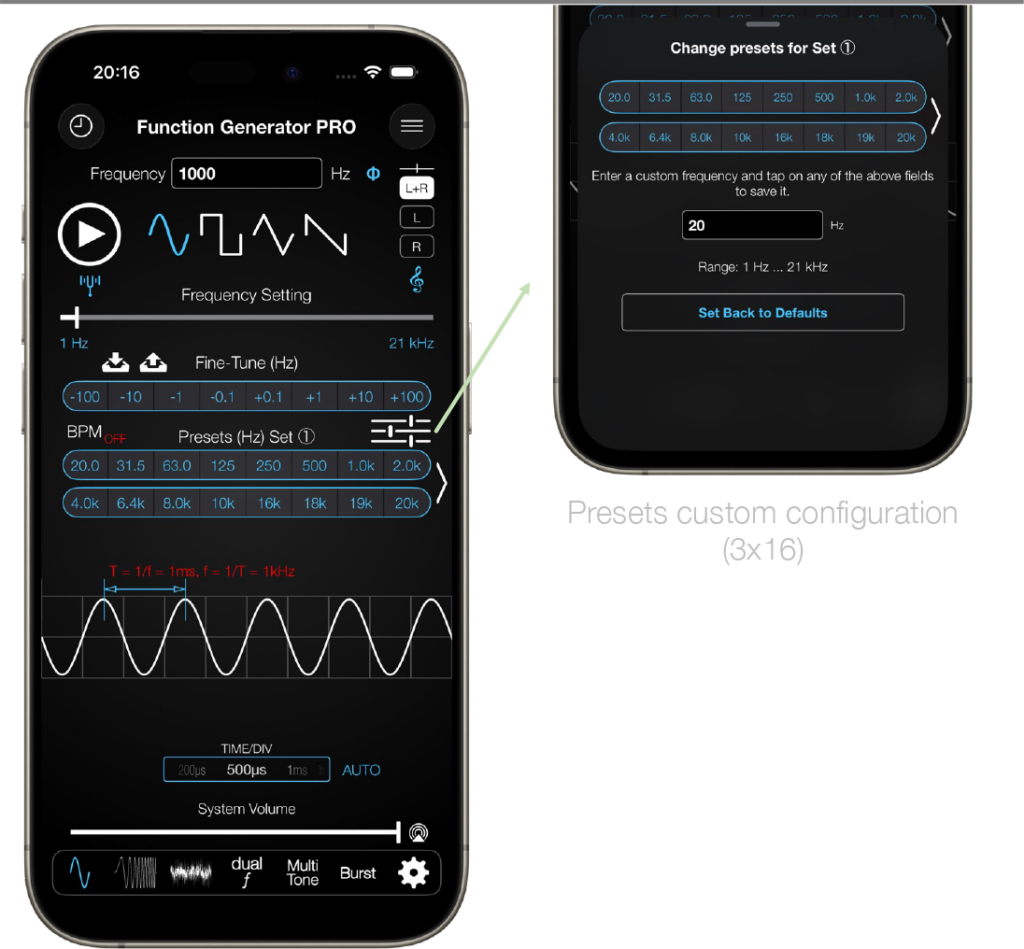
All the frequency presets can be customised. A popup menu allows an easy customisation of the presets. Enter a custom frequency in the text field and tap on any of the preset-fields to save it.
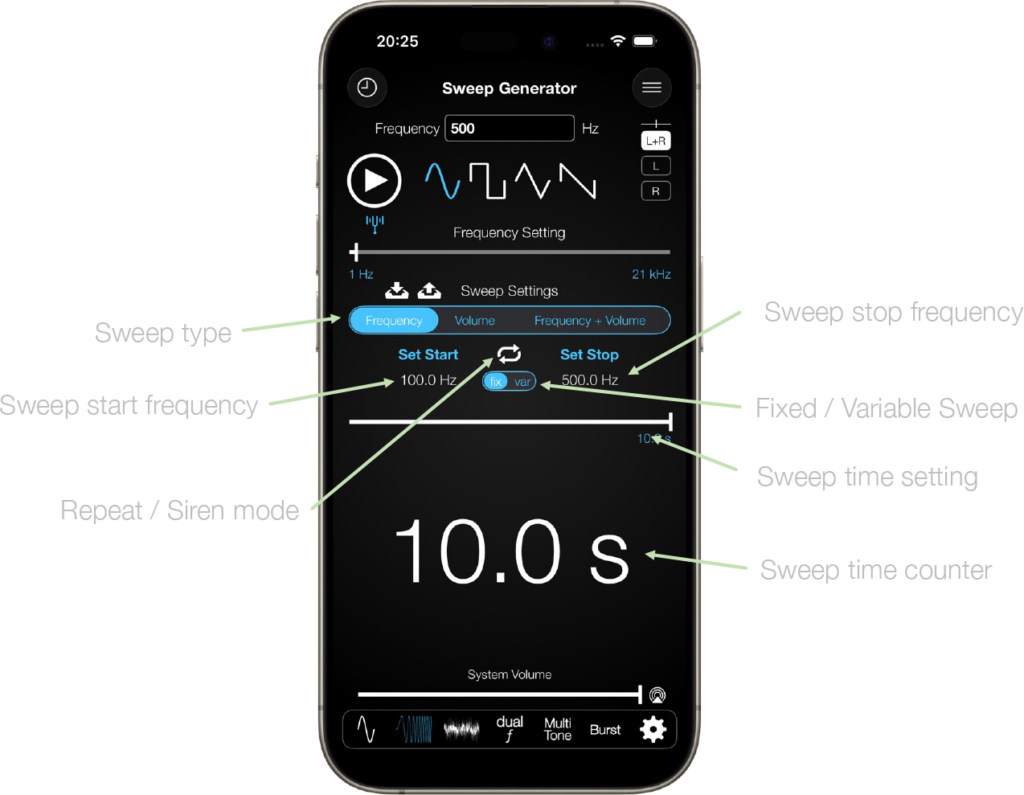
In sweep mode, the function generator runs in both directions, min => max frequency and max => min frequency within the specified time. In Volume Sweep mode, the amplitude is increased from a start amplitude to a stop amplitude within the specified time. In variable mode, the frequency steps and the duration per step can be configured.
In frequency+volume mode, the frequency increases from start frequency to stop frequency at start amplitude to stop amplitude. If using the variable mode, the frequency steps and the duration per step can be configured in addition.
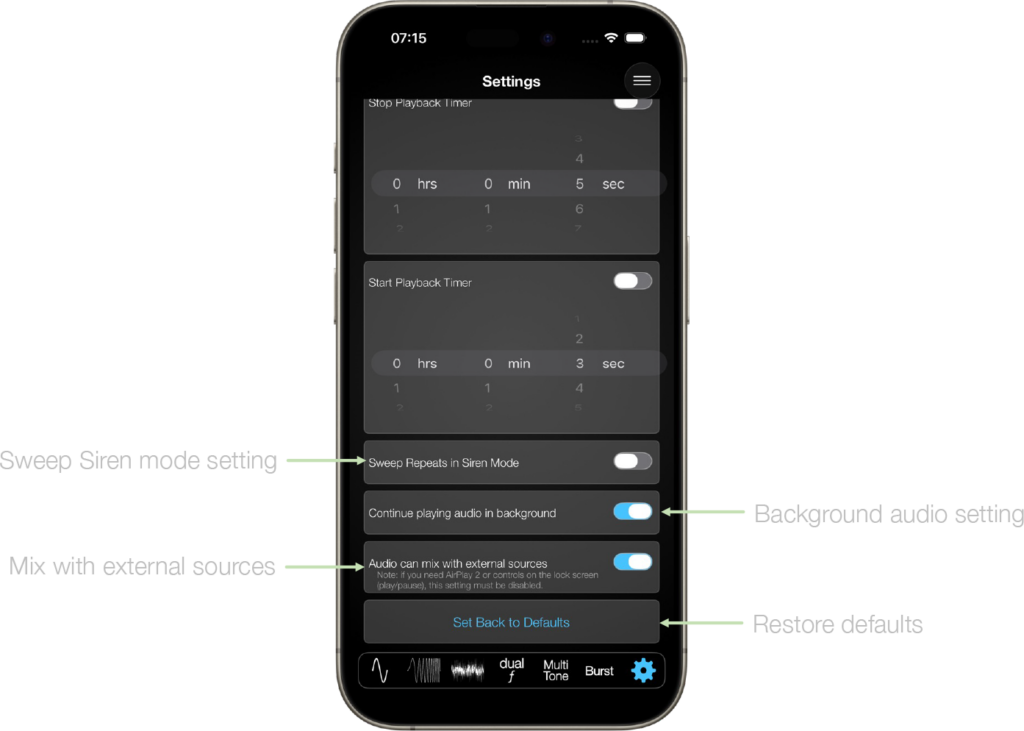
If the Repeat button is selected, the sweep will repeat in a loop. If you enable the Siren Mode (Setting menu), the sweep function increments from min to max and then decrements to min again. Then it repeats from min to max and so on.
Select a start frequency by entering a value in the text field or set the frequency via the frequency slider. Then tap on “Set Start”. This sets the sweep start frequency. Do the same for a stop frequency.
The sweep time can be set via the sweep time slider. Its max value can be configured in the Settings menu.
The current sweep time is indicated by the sweep timer.
Overview of the Sweep features:
low => high, high => low
repeat mode, siren mode
fixed or variable steps
custom sweep time
set amplitude at start, set amplitude at stop
repeat mode, siren mode
custom sweep time
low => high, high => low
set amplitude at start, set amplitude at stop
repeat mode, siren mode
fixed or variable steps
custom sweep time
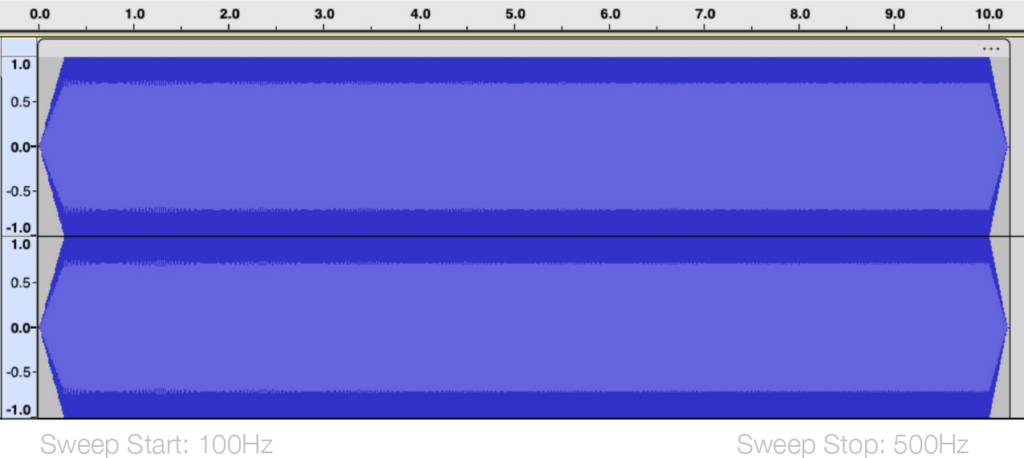
Example of a fixed frequency sweep from 100Hz to 500Hz
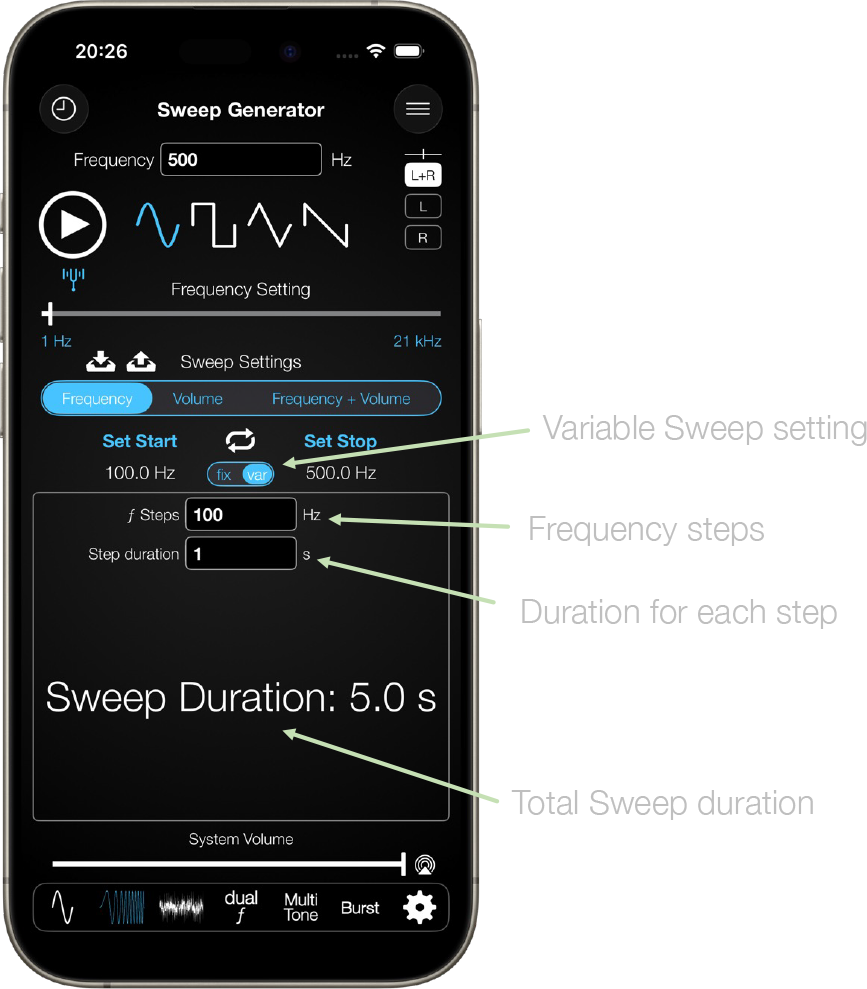
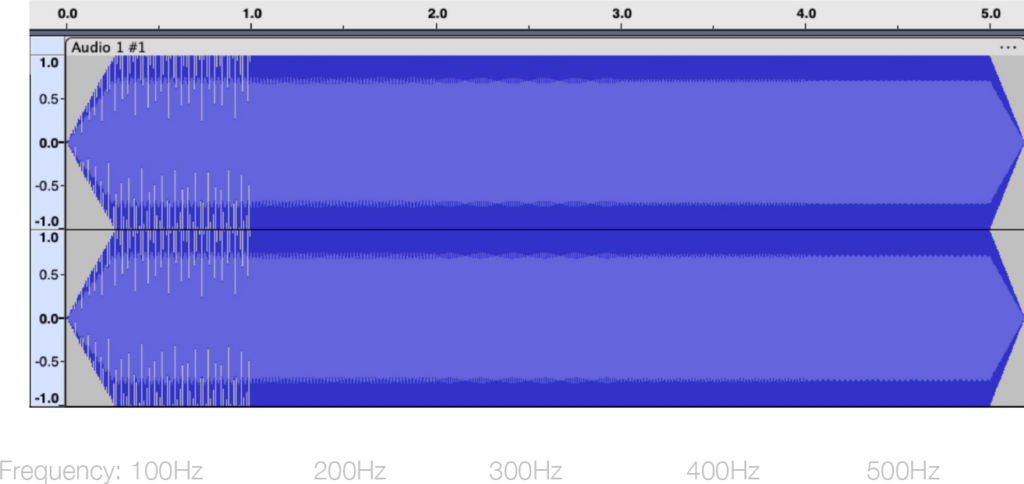
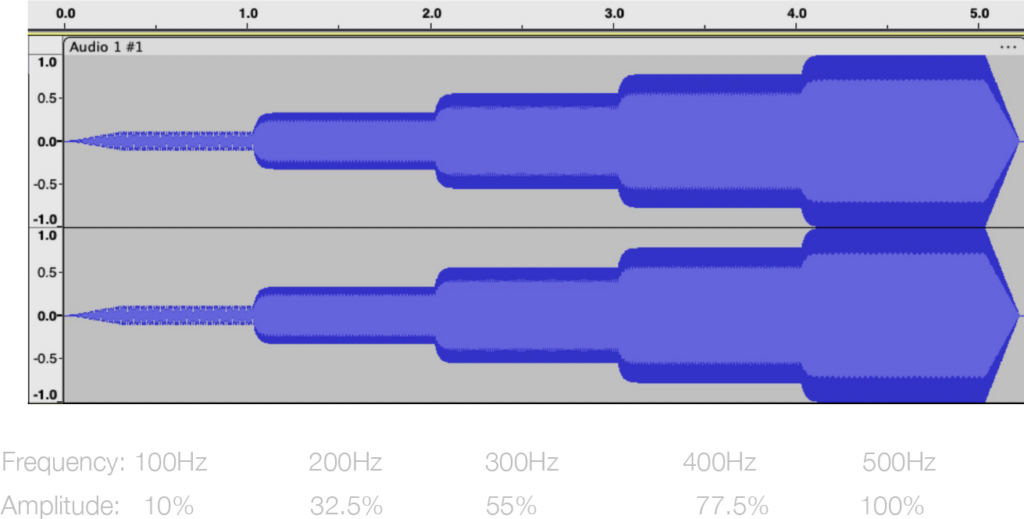
Example of a variable frequency sweep from 100Hz to 500Hz using a step size of 100Hz and a duration per step of one second.
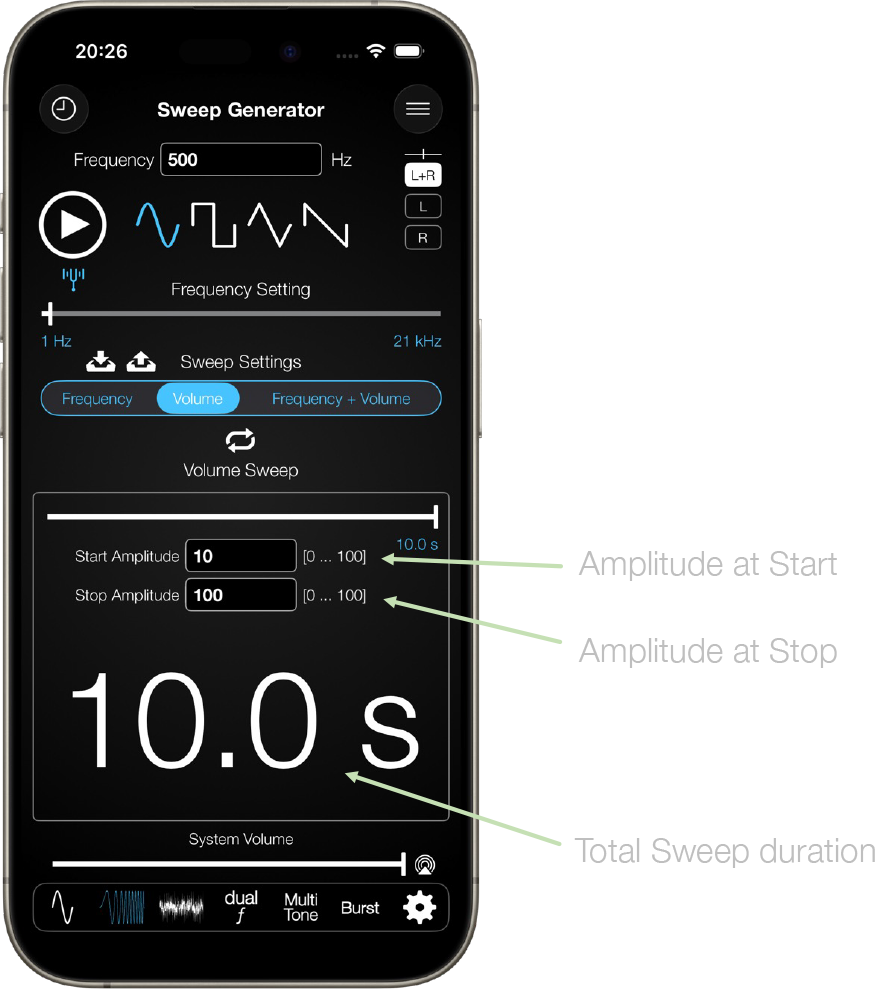
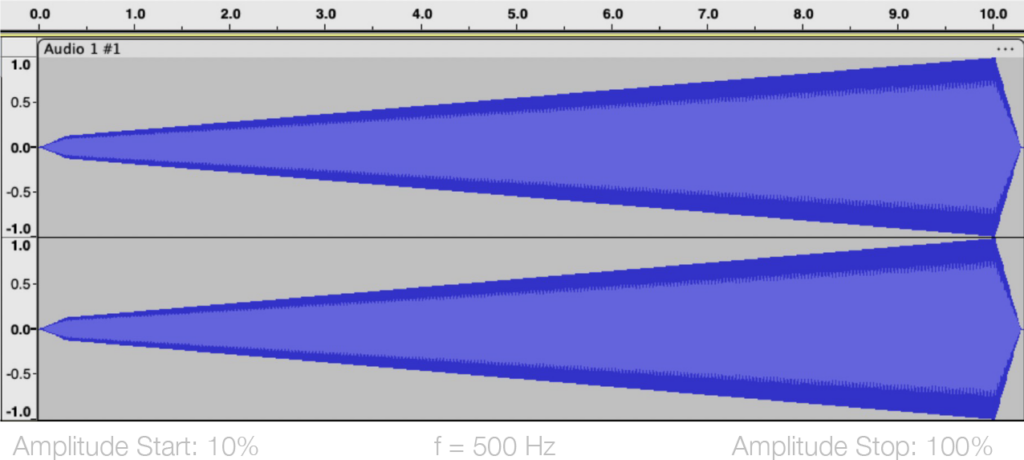
Example of a volume sweep from 10% to 100% at a fixed frequency of 500Hz.
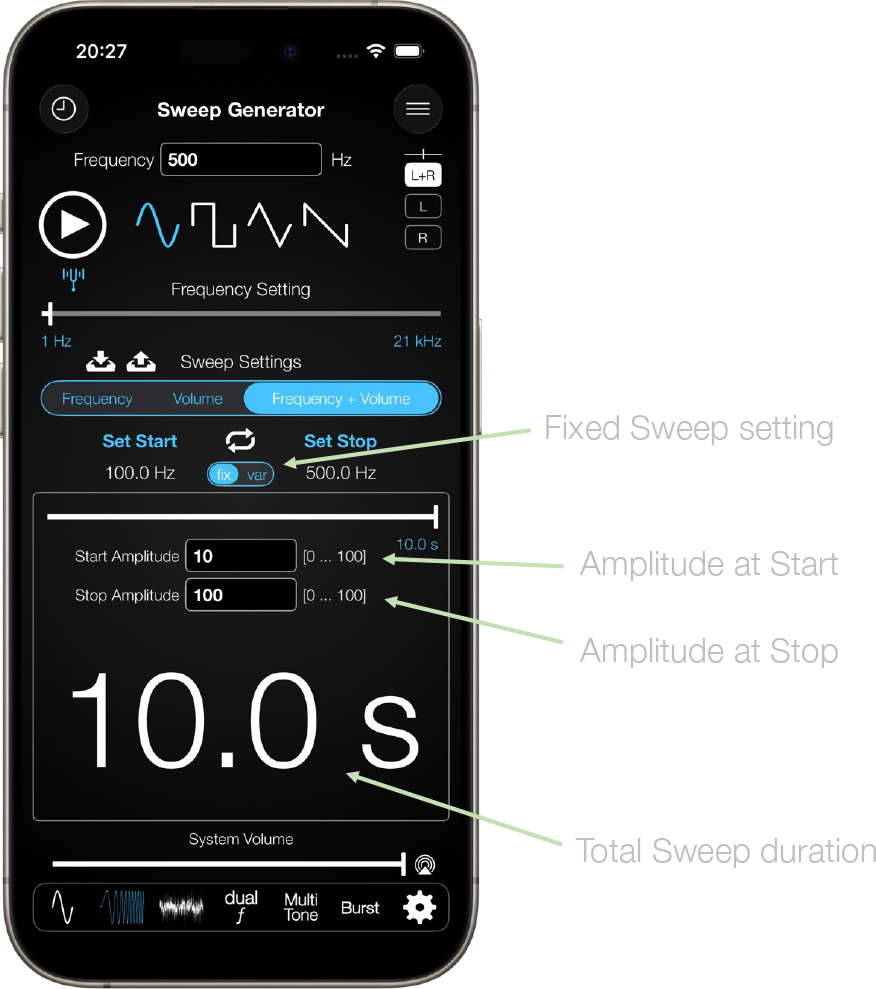
Example of a fixed frequency sweep from 100Hz to 500Hz while the amplitude increases from 10% to 100%.
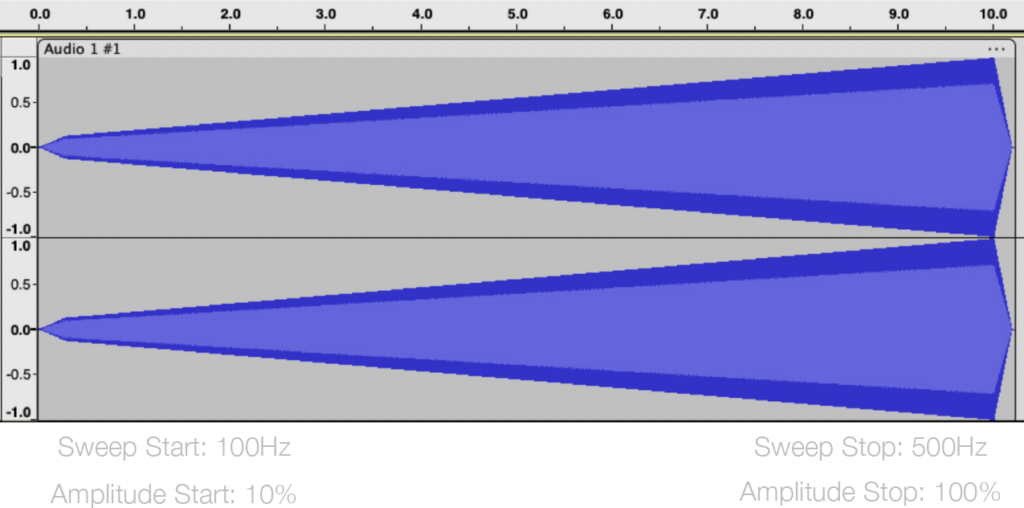
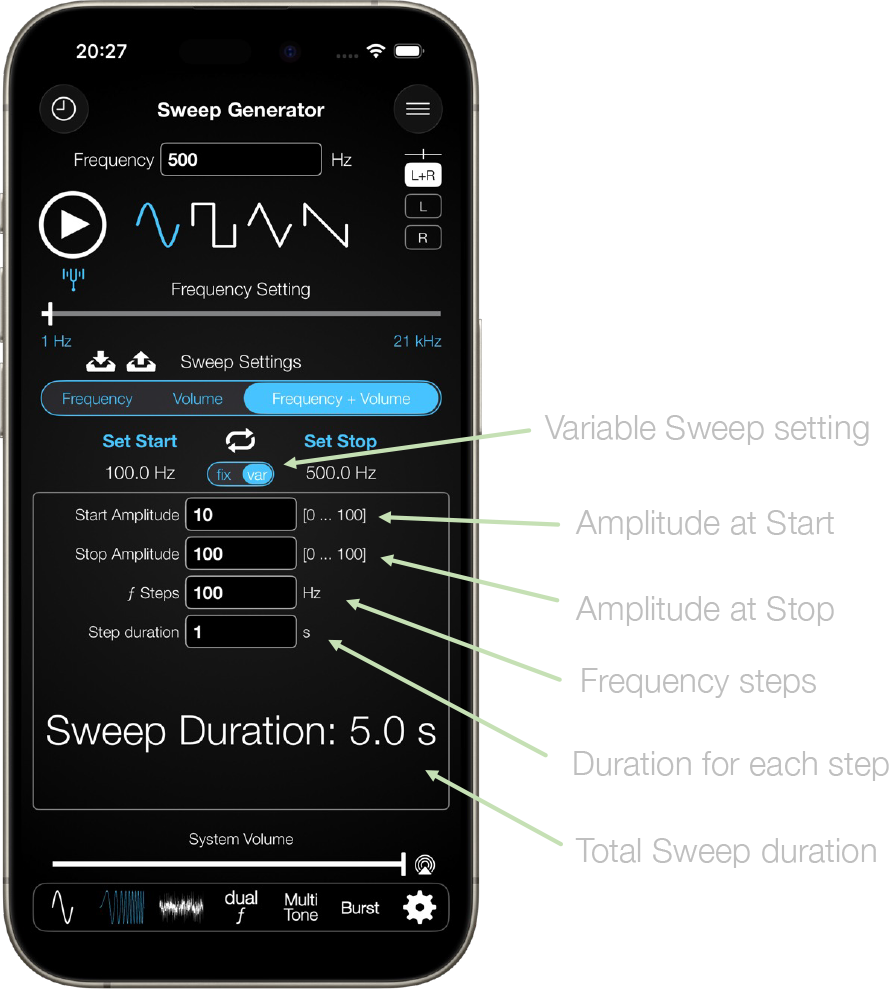
Example of a variable sweep from 100Hz to 500Hz with a step size of 100Hz and a duration of one second per step while the amplitude increases in the same step size duration from 10% to 100%.
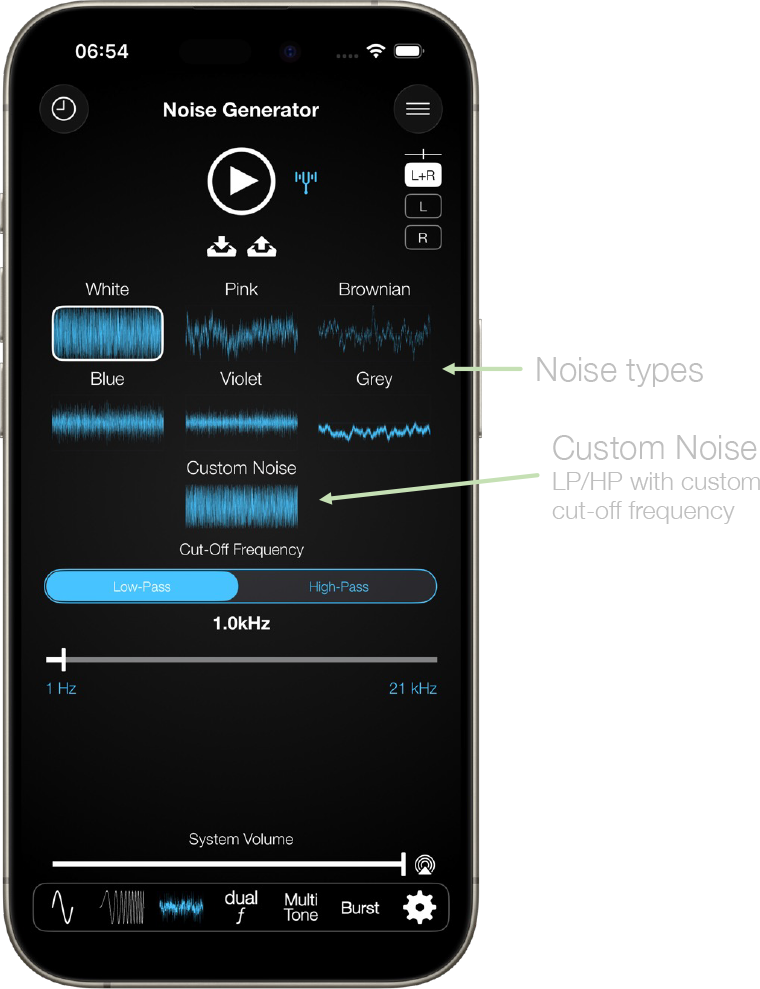
There are 6 types of noise that can be played: White Noise, Pink Noise, Violet Noise, Grey Noise, Brown Noise and Blue Noise. In addition, Custom Noise is supported allowing to set a LP or HP filter with a custom cut-off frequency.
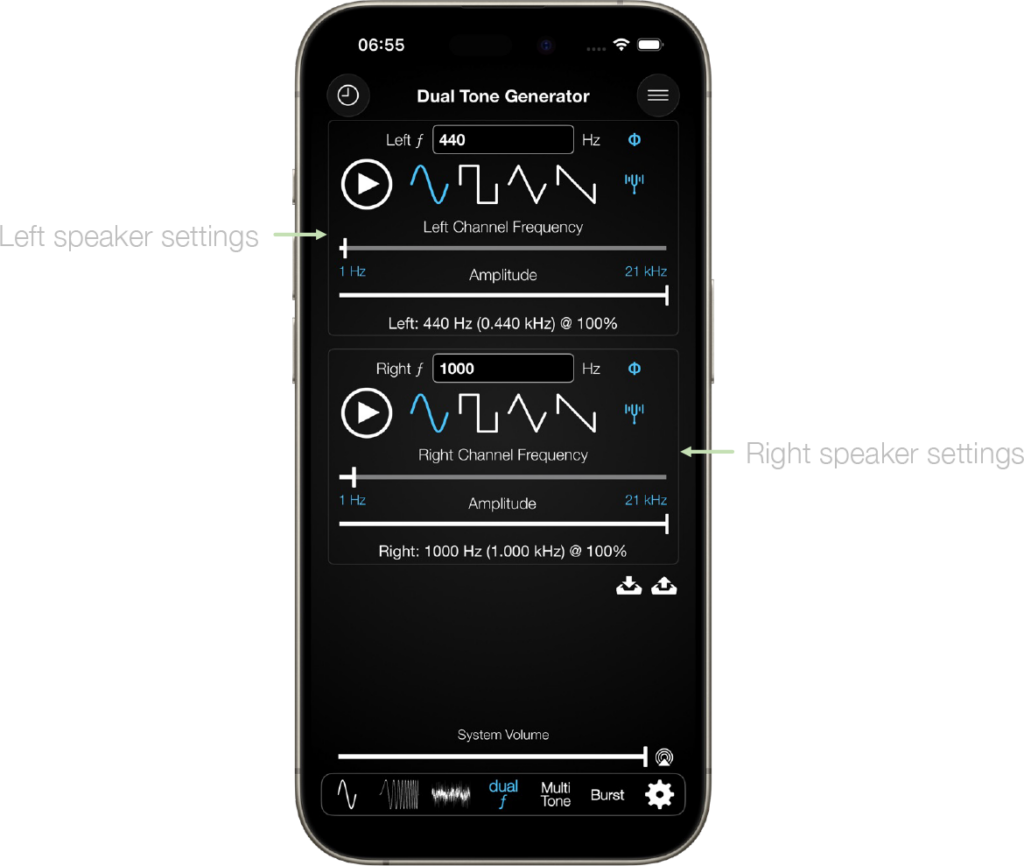
The dual frequency generator provides means for outputting a different frequency per each channel – left or right individually. You can even output different waveforms per channel. Say you want to play 440Hz sine on the left channel, and 1000Hz saw-tooth on the right channel – no problem!
Also the volume and phase of each channel can be controlled individually.
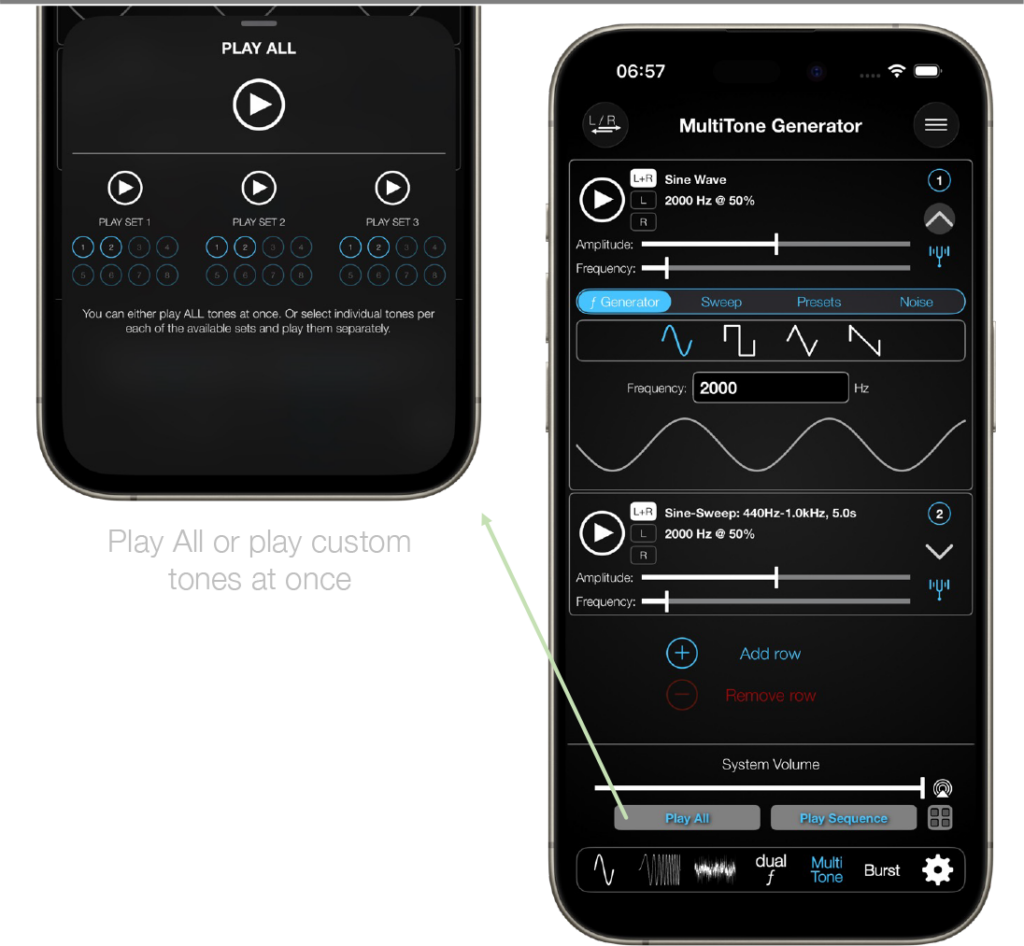
The MultiTone Generator provides means to create and play up to 8 completely individual tone combinations in parallel. Tap on the expand section icon (burger menu) for more details / settings of each tone tab.
The frequency and the volume of each tab can be set individually.
The expanded section of each tone tab provides access to settings like playback type or the text field for manual entry of the frequency.
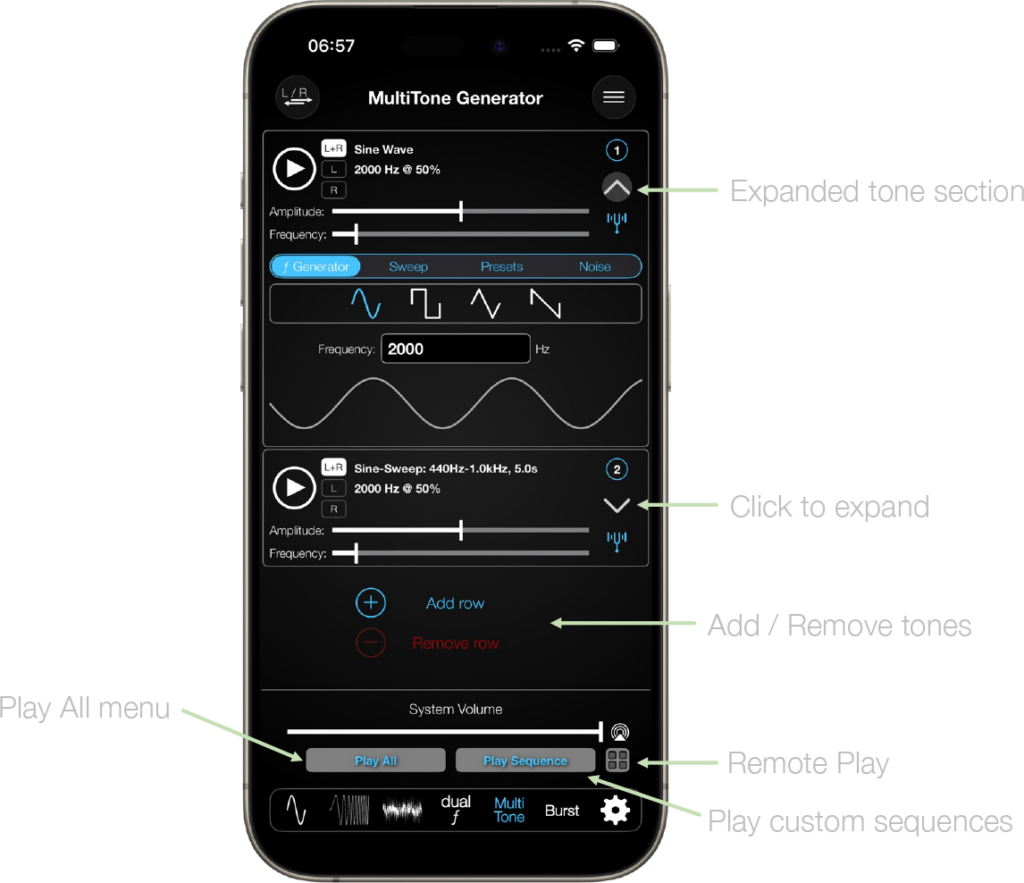
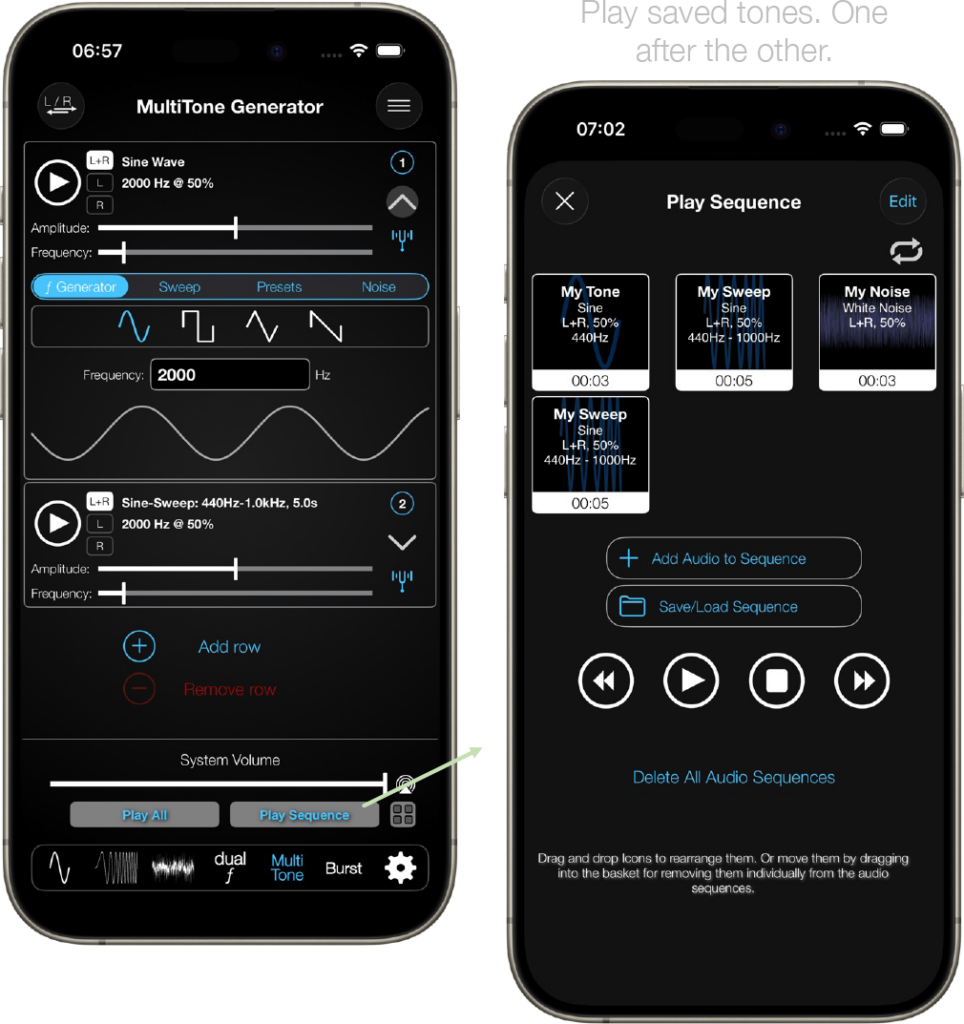
The Play Sequence Menu allows you to create tone sequences with a given duration and let them play one after the other.
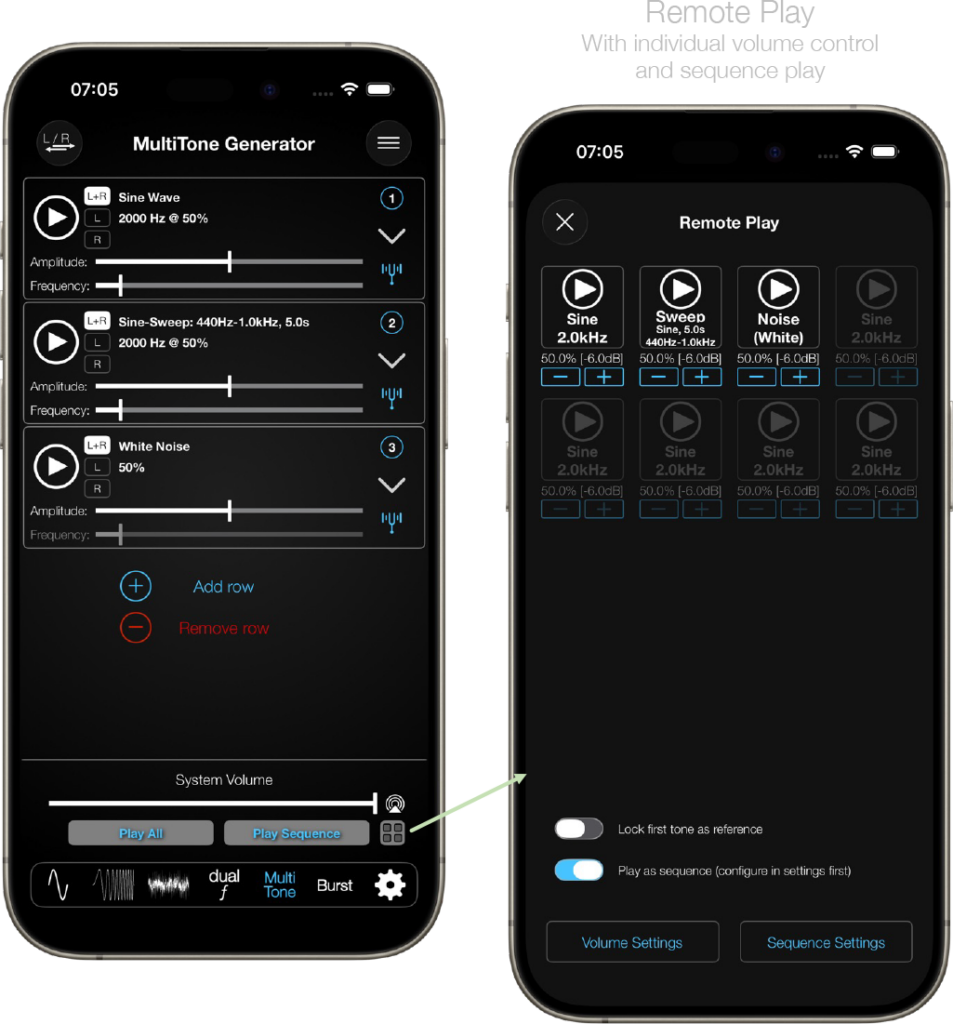
Remote Play is a single page overview of all your currently active tones. You can control all of them from that single page and in addition tweak volume levels for each tone individually.
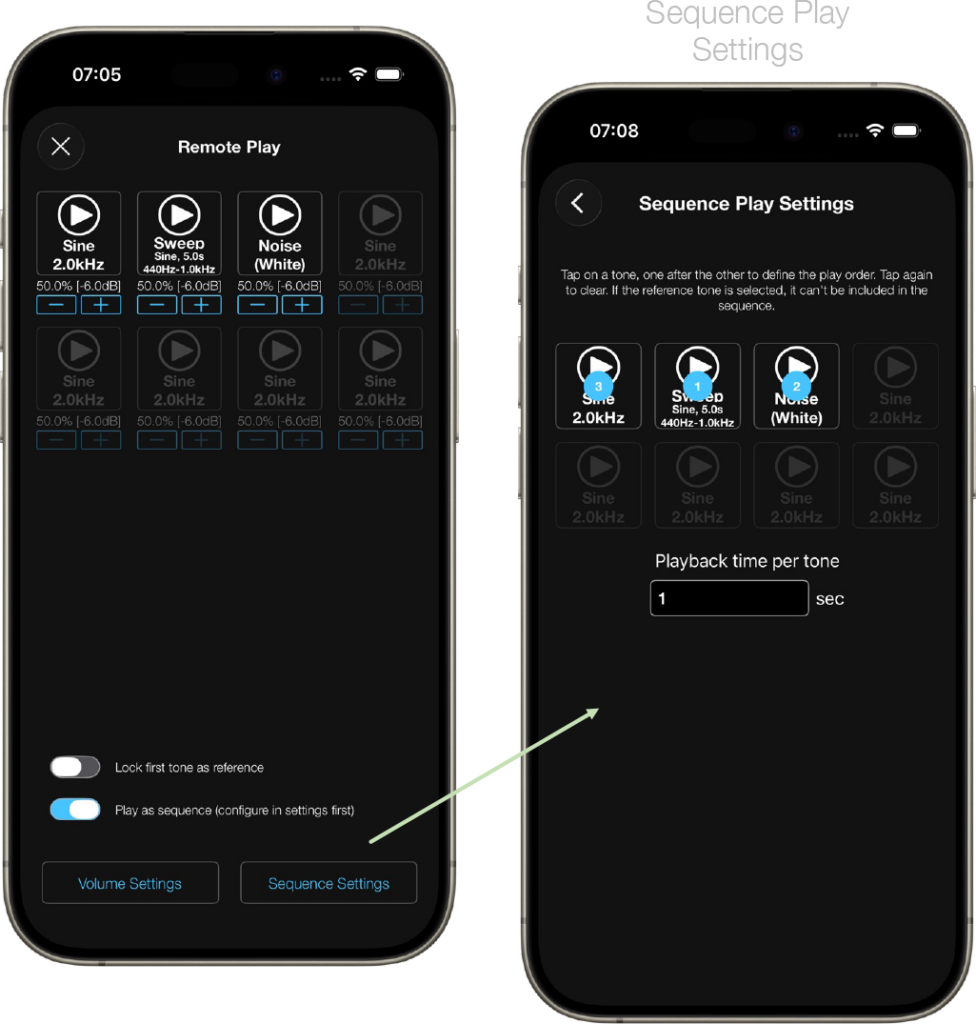
There is also the option to define a play sequence and a playback duration for the tones.
On the main page sidebar menu there is the option to save/open tone configurations. All 16 tones on the main page can be saved to be loaded at a later time.
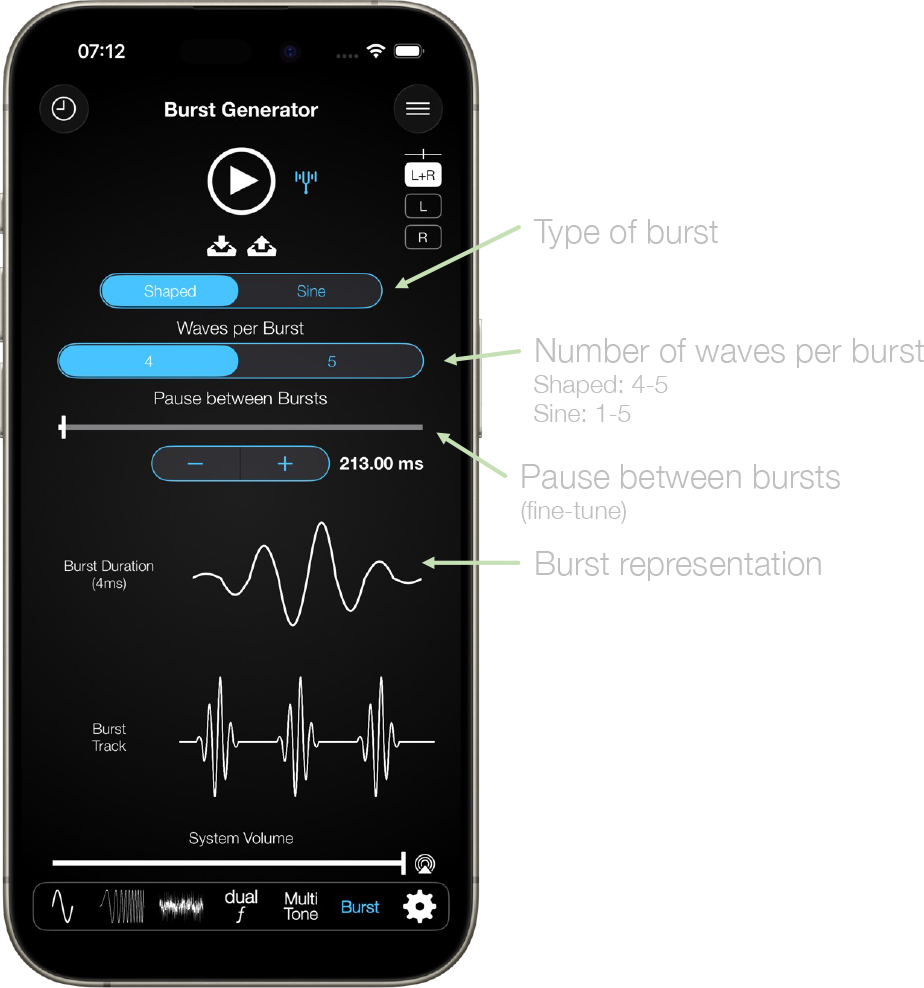
The audio function generator also features a burst mode for testing audio latency or Multi-Room synchronisation.
Very customisable with different configuration options and waveforms.
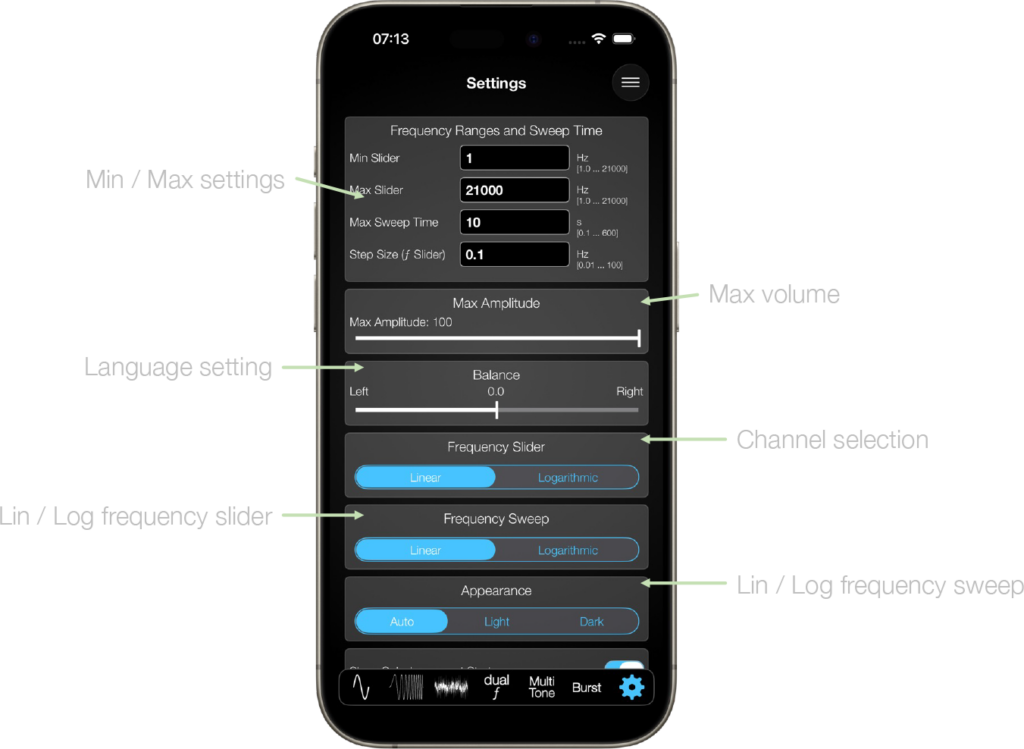
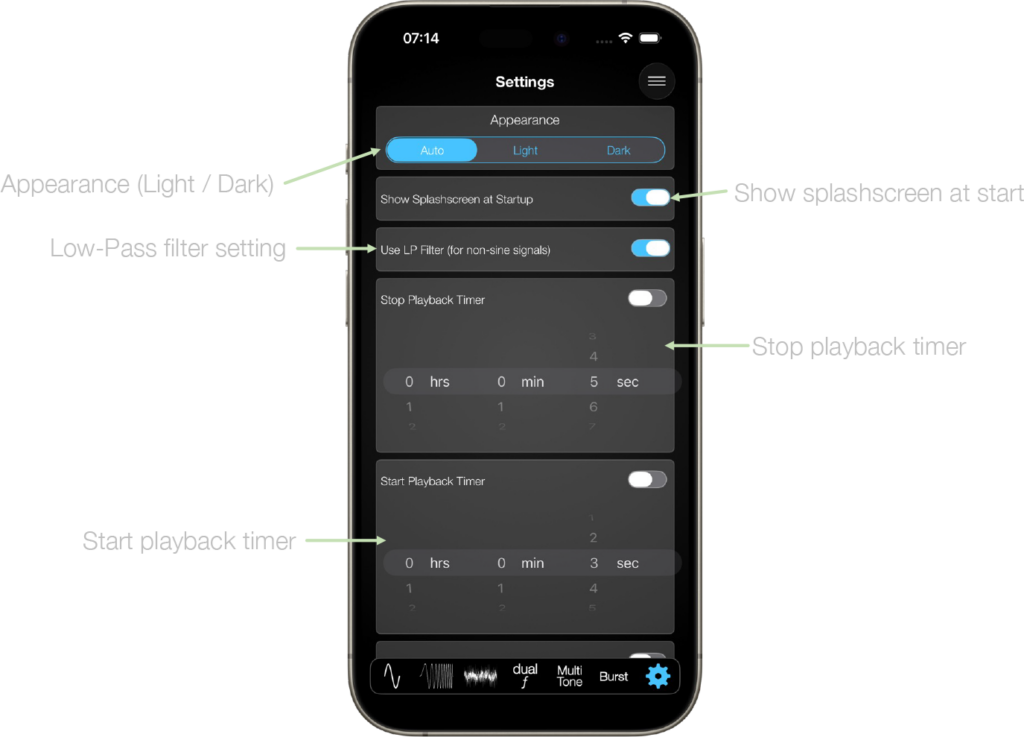
The settings page of the audio function generator is a scroll down menu, providing great amount of means for individual configuration.
The min/max range of the frequency sliders can be customised here. Also the max sweep time can be entered. This will reflect in the respective slider setting on the other tabs.
The audio function generator has English or German language support.
Channels can be set individually here on the settings page, or in each tab as well.
The frequency slider can be set for linear or logarithmic mode. Also the frequency sweep can be configured to run in linear mode, or in logarithmic mode.
Two background modes are available: Dark or Light.